



















There’s one step that comes before the first tap, though, and it isn’t technical. Being able to install the casino doesn’t mean you’re permitted to use it. That turns on the law where you live, and the operator’s terms leave the checking to you. So please confirm that online casino or betting activity is allowed in your jurisdiction before you register, deposit or play. It’s for over-18s only. And having it on your phone, honestly, changes nothing about the games; they’re decided by chance.
Check the Official Installation Method
It’s a good habit to look at the source before following a guide, this one included. The operator’s Android download page and its Create Shortcut page – the latter is linked in the site’s footer under General Info – show what’s on offer at the moment, and if they differ from what you read here, they’re the ones to believe. When we checked, the official methods were the Android app from an APK, and the home-screen shortcut for Android and for iOS.
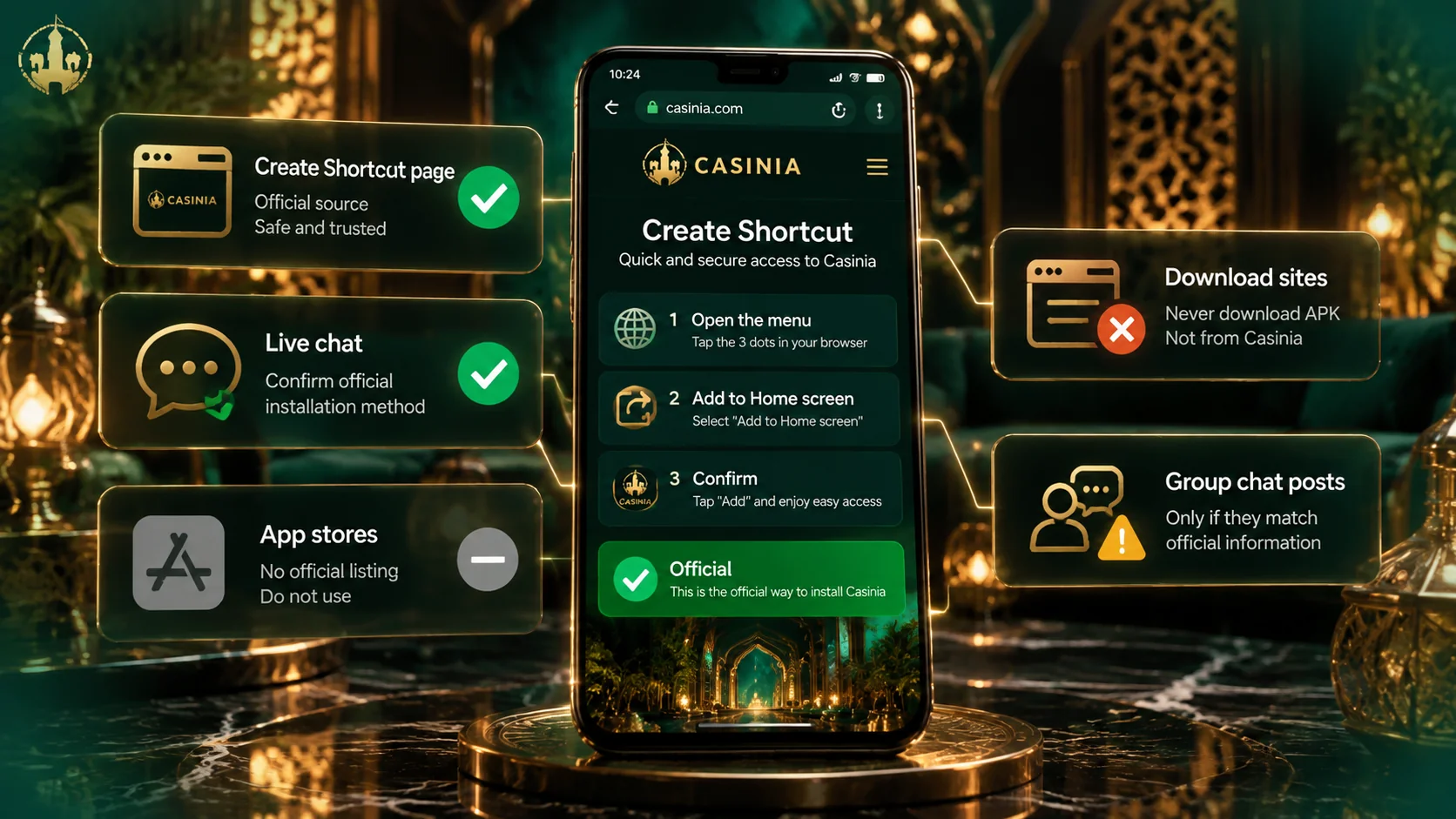
A little preparation makes the rest go smoothly. Before you begin, it helps to have:
- a steady connection, ideally Wi-Fi;
- a bit of free storage, if you’re installing the Android app;
- the site open in your phone’s browser – Chrome on Android, Safari on iPhone;
- your login details to hand, if you already have an account;
- five unhurried minutes.
That’s the whole list. None of it is demanding, I mean, but each item removes one of the usual reasons an installation stalls halfway. Once you’ve got these in place, pick your device below and carry on.
Android Installation Steps
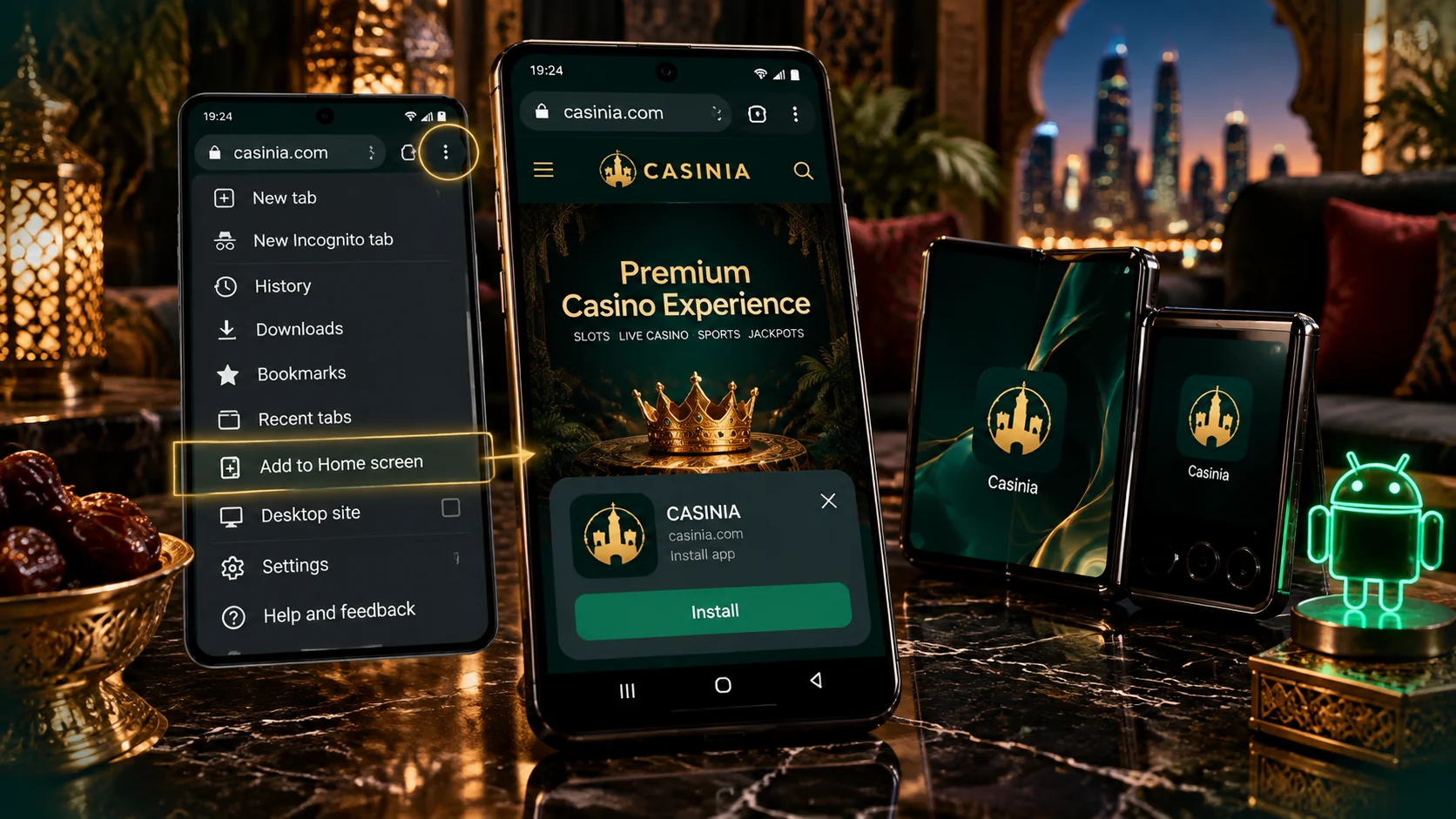
On Android, the fuller option is the app. It arrives as an APK file, the ordinary package format for Android applications, and installing it follows the same pattern on nearly every phone – though the pop-ups are phrased a little differently by each manufacturer, so yours may not match ours word for word. If the download page lists its own steps, use those.
- Open the operator’s official Android download page from its website;
- Tap the download button and wait for the APK file to finish downloading;
- If Android asks whether your browser may install apps, allow it;
- Open the file from the notification or the Downloads folder and tap Install;
- Find the new app in your app list, open it, and log in.
Once it’s installed, you can return to your settings and take the install permission away from the browser again; it was needed only for that step. If you’d sooner not install anything, the shortcut is the alternative. The official Create Shortcut page says to try its installation link first, and failing that to tap the three-dot menu in the upper right-hand corner of the browser, scroll down, choose Add to Home screen and enter a name. Either way, tap the new icon once to check that it opens the casino.
iPhone Installation Steps
On an iPhone or iPad there’s only the shortcut to deal with, and it’s the shortest procedure of the lot. With the site open in your browser, the official page gives three steps:
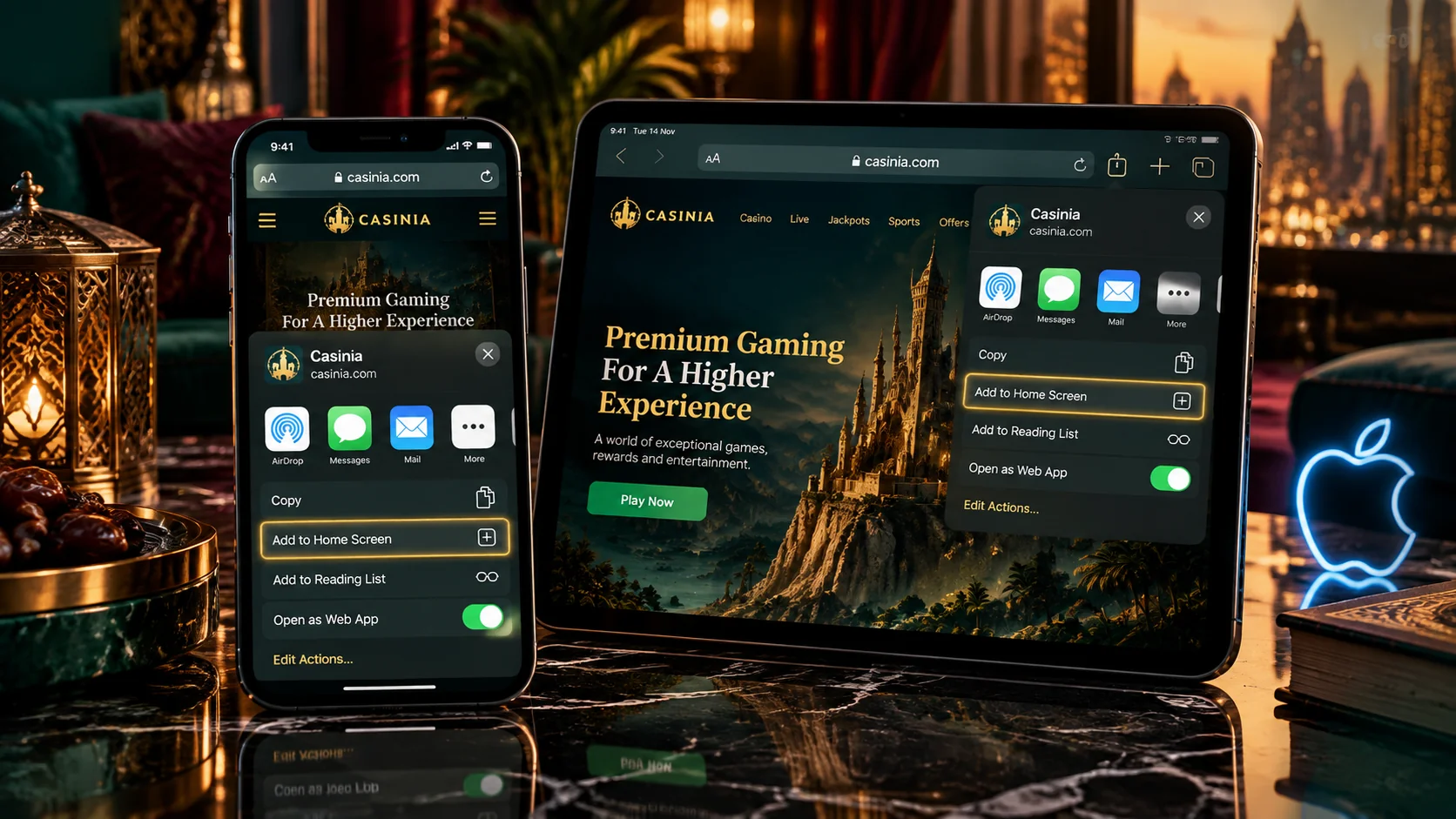
- Tap the share icon, the box with an arrow pointing out of it;
- Scroll down the menu that opens and tap Add to Home Screen;
- Enter a name for the shortcut, and the browser adds it to your home screen.
A few things are worth knowing, you know, because they’re where people pause. In Safari on an iPhone, the share icon is in the bottom bar; on an iPad it sits at the top. The option you need is lower in the menu than you might expect, under the row of contacts and apps. And if you browse with something other than Safari and can’t find it, doing this once in Safari is the dependable way. The icon then behaves like any other – move it, name it as you please when creating it, or hold it down to delete it.
Permissions, Shortcuts and Security
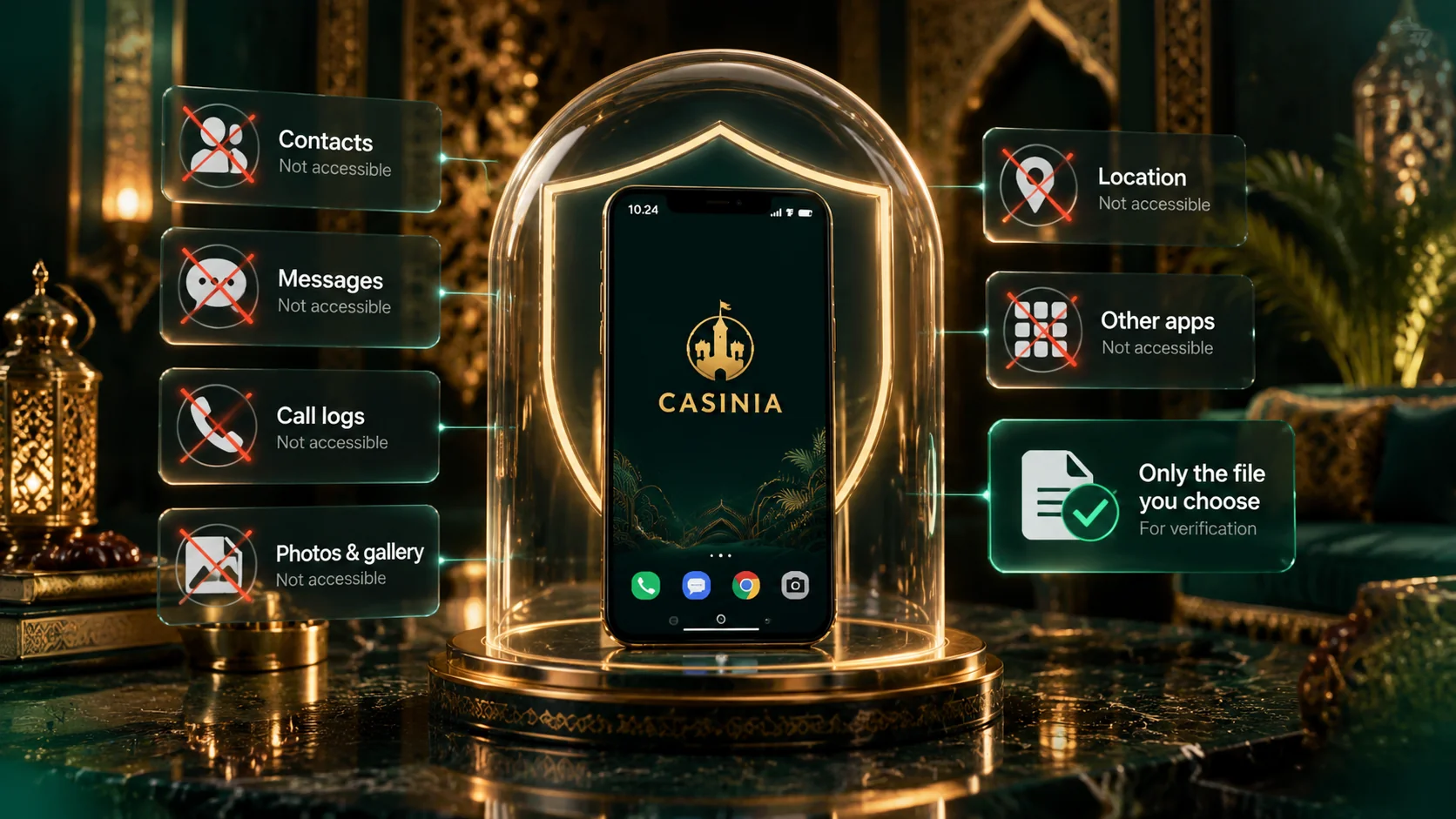
The two formats sit quite differently on a phone, and it’s worth seeing that plainly before you trust either with your login.
| Android app (APK) | Home-screen shortcut | |
|---|---|---|
| What ends up on the phone | An installed application | An icon that points to the site |
| Permission asked at setup | Installing from your browser, once | None |
| Where to get it | The official Android download page only | The official Create Shortcut page |
| Later versions | From the same official page | Not needed; opens the live site |
The shortcut is sometimes described as a PWA, a web app. The official page doesn’t use the term and doesn’t promise extras such as notifications, so it’s safest to think of it as exactly what it’s called. The app is a real program, and that’s why its source matters. An APK from a file-sharing site, or one that arrives as a link in a message, could contain anything; there’s no way to tell from the outside. The same goes, on an iPhone, for any page asking you to install a configuration profile to “enable” an app – the official method needs nothing of the kind.
So the rule is short. Take the Android app from the operator’s own download page, add the shortcut from its own Create Shortcut page, and treat everything else as unconfirmed. Keep your screen lock on, too, since your account will come to hold documents and payment details. If a page or a file leaves you unsure, it’s kind of always worth a quick question to support before you go further.
Login After Installation
The first login is the same on every route. Open the app or tap the shortcut, press Log in, and enter your username or registered email followed by your password. Mind the capitals: the password is case-sensitive, and phone keyboards tend to capitalise the first letter on their own. If you haven’t registered yet, the Register button is alongside – though the terms allow only one account per person, household and IP address, so an existing account should simply be used. Everything then opens from the menu: the casino lobby and its demo games, live tables, the sportsbook, the cashier with deposits from \$15, and support.
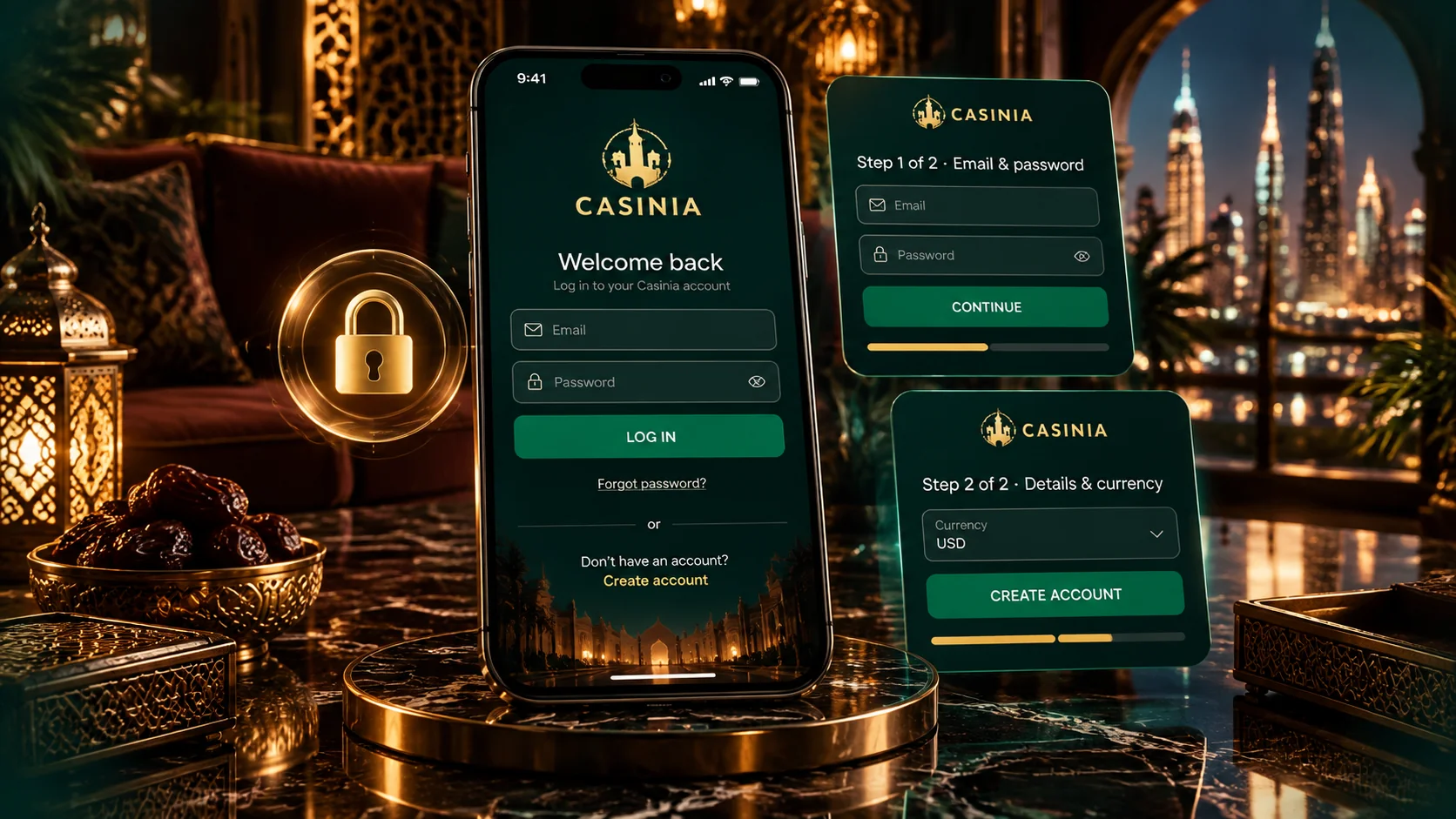
If you can’t get in, start with the simplest explanations. Check the username or email for a slip, then the capitals in the password. A forgotten password is reset through the forgot password option, which sends an email to your registered address. Should an error keep returning, take a screenshot – support asks for one – and contact them on live chat, which runs 24 hours a day, or at [email protected].
The same team can arrange a break or self-exclusion whenever you’d like one. It seems like a small detail on an installation page, but it matters: gambling can be addictive, and the operator says so plainly. So set a limit you’re comfortable with before your first session, and please confirm that it’s permitted in your jurisdiction before you register, deposit or play.